
3. Trading
3.1 Trading History
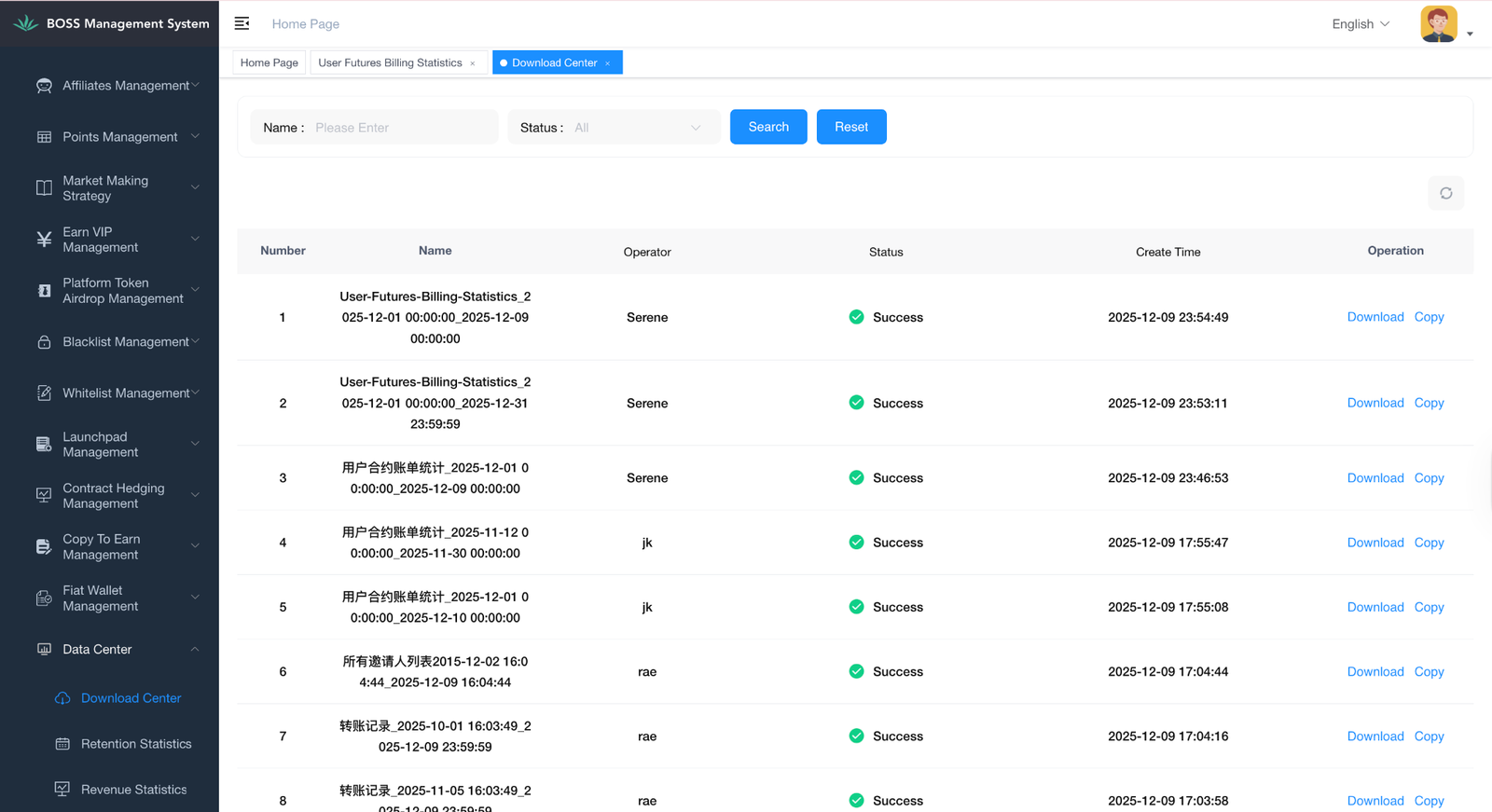
- Order futures > Order History, All Trading History
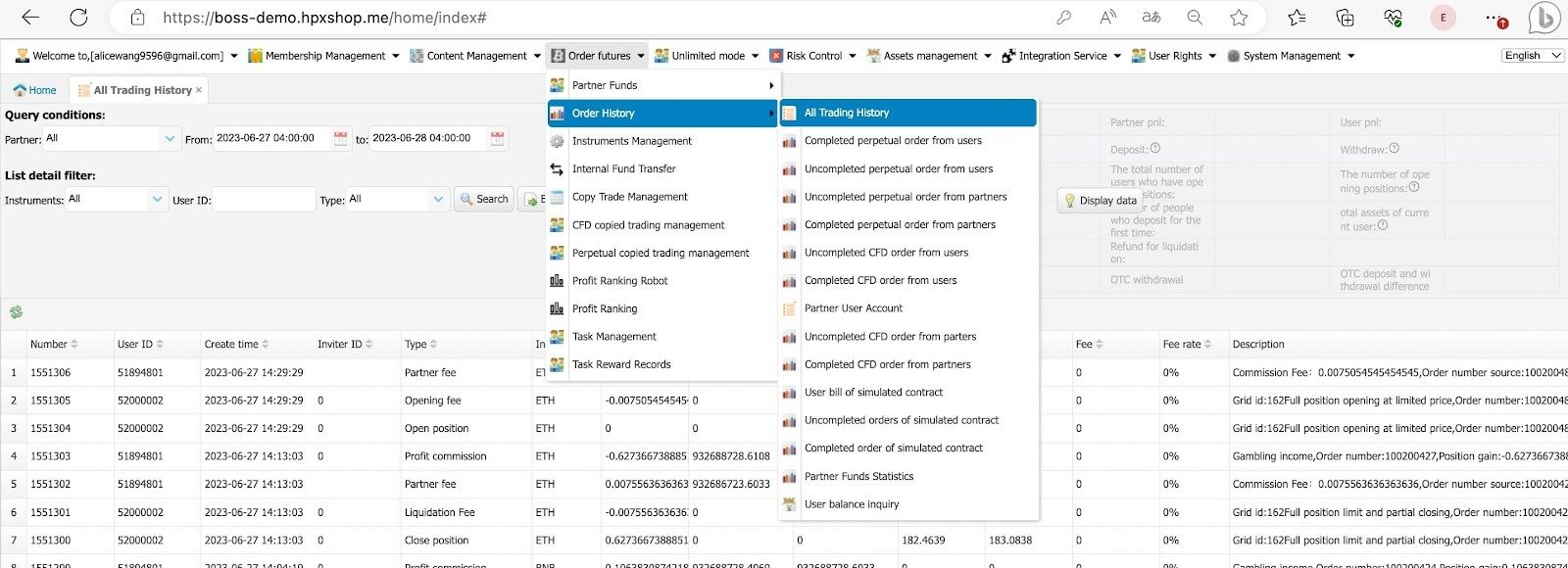
- On top, you can check all the trading records here. Calculations reset daily at 4:00 AM Beijing Time; 0:00 GST, while data updates in real-time.
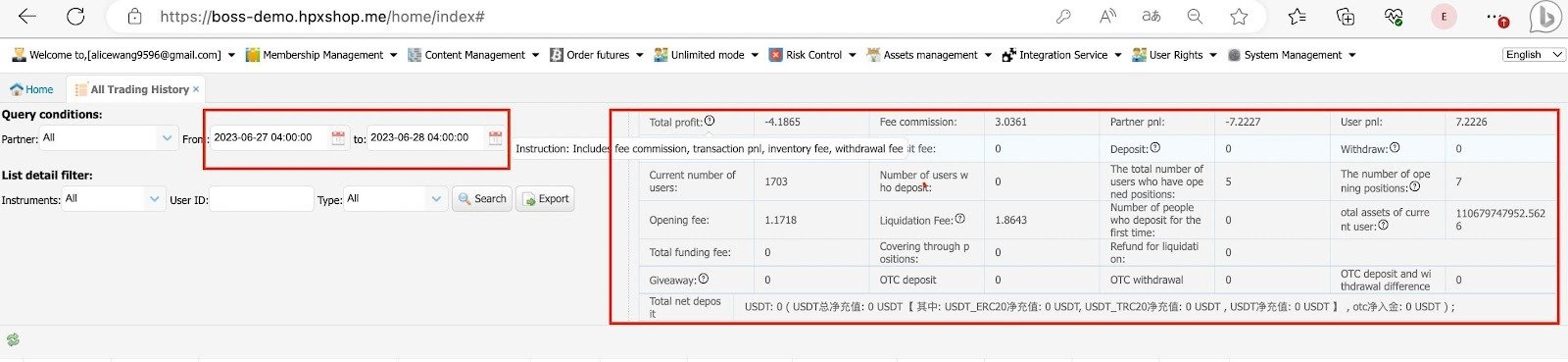
- You can view the profit and loss of each partner, or select All to see the overall results. The data can also be exported to Excel. Total Profit = Platform Profit
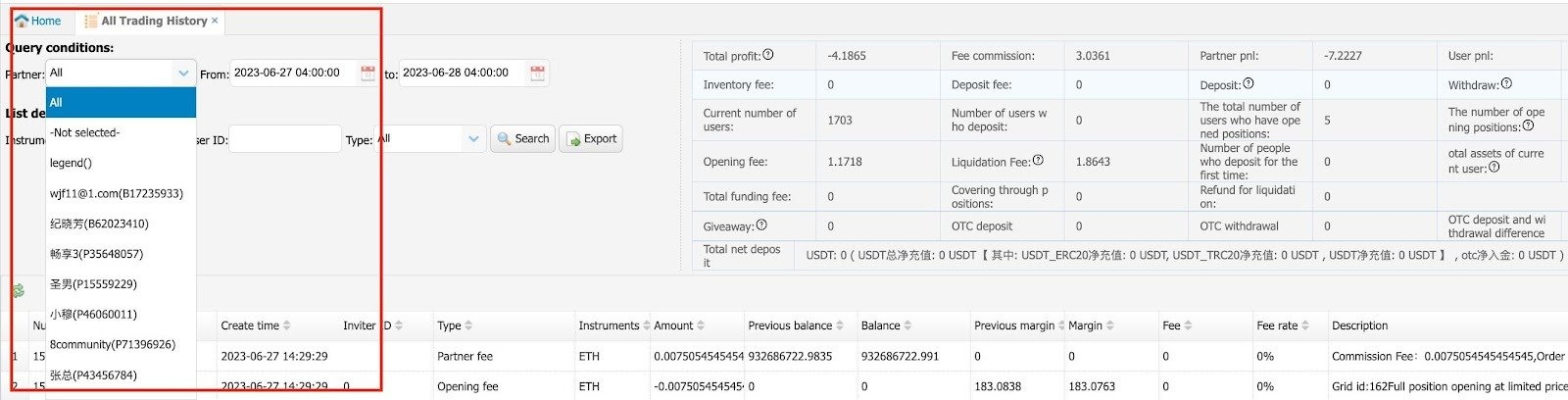
- Select Type and choose the transaction type to view.
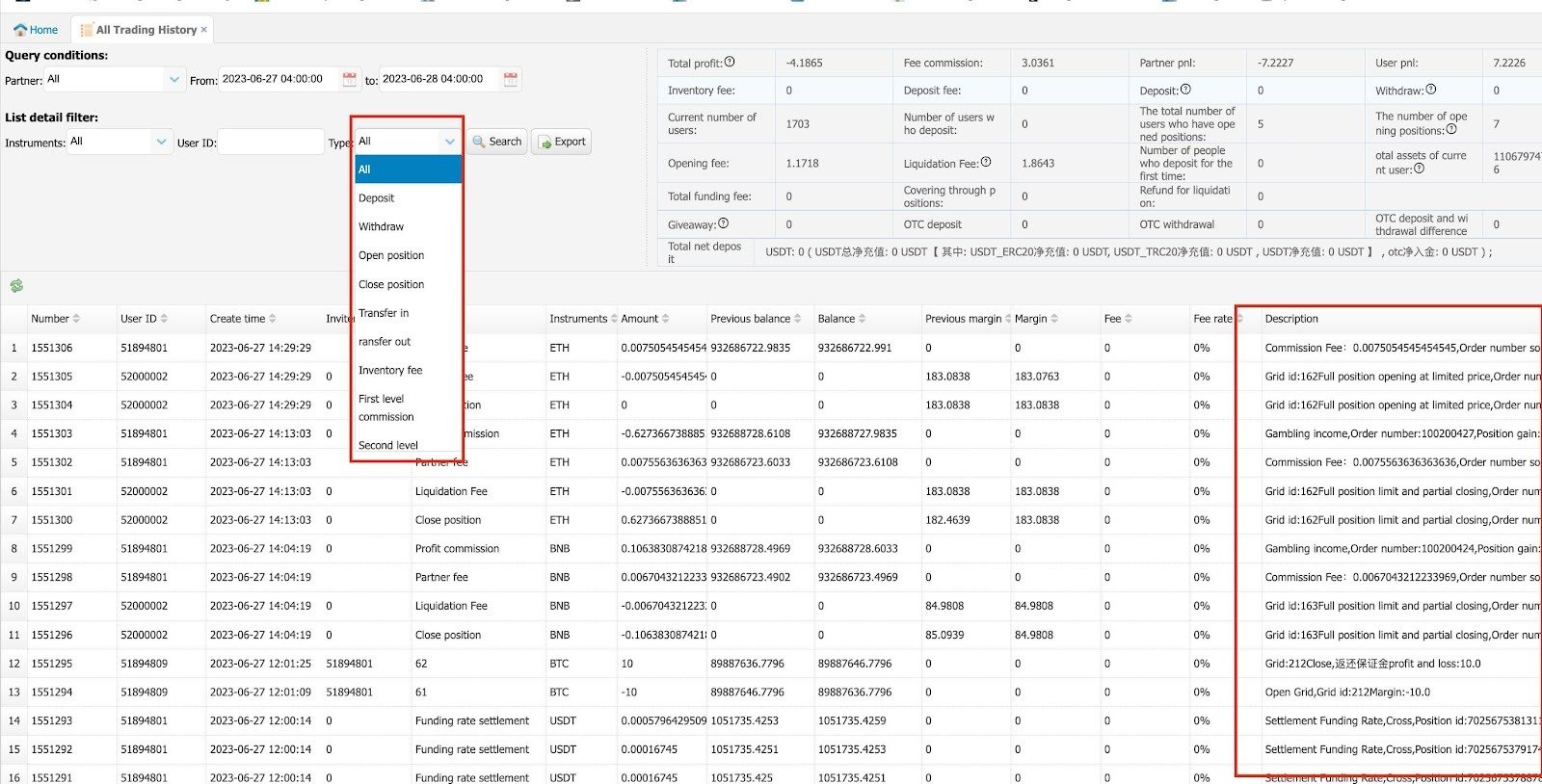
- You can also check ongoing and completed orders, including details such as floating PNL, opening and closing prices, liquidation price, transaction fees, margin used, leverage, and user profits.
- Order futures > All Trading History > Completed Perpetual Order From Users.
All the closed positions will be shown here.
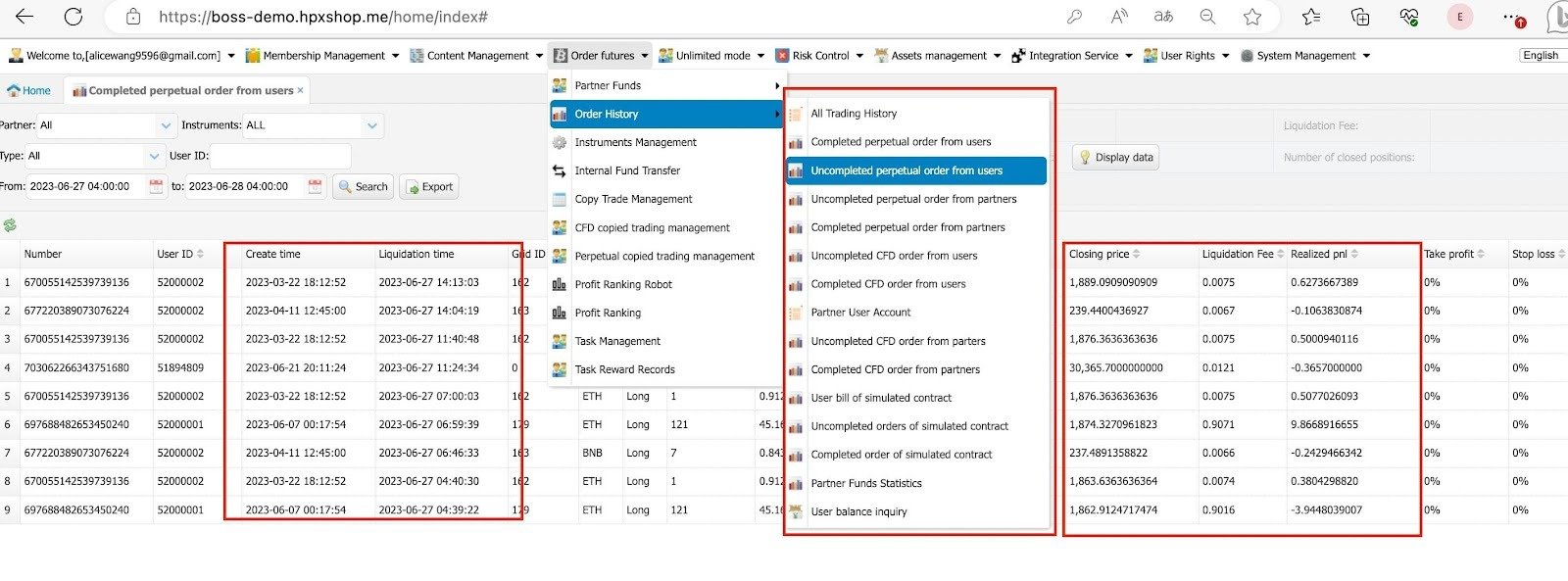
- Order futures > All Trading History > Uncompleted Perpetual Order From Users.
All the ongoing positions will be shown here.
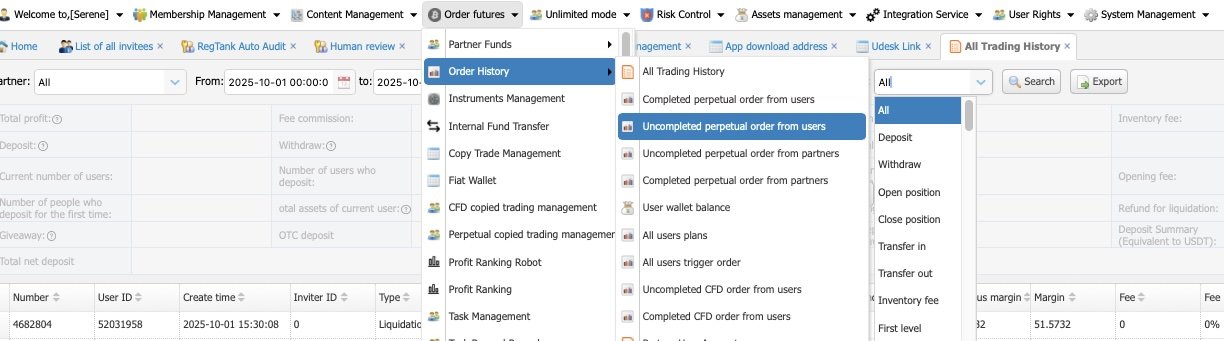
3.2 Stop Loss and Take Profit
Option 1:
- Order futures > All Trading History > Completed Perpetual Order From Users.
- Click on Profit and Stop Loss History button, you can check the SL & TP record here.

Option 2:
- New Backend Management System > Partner Data Query> Perpetual Futures Take Profit and Stop Loss.
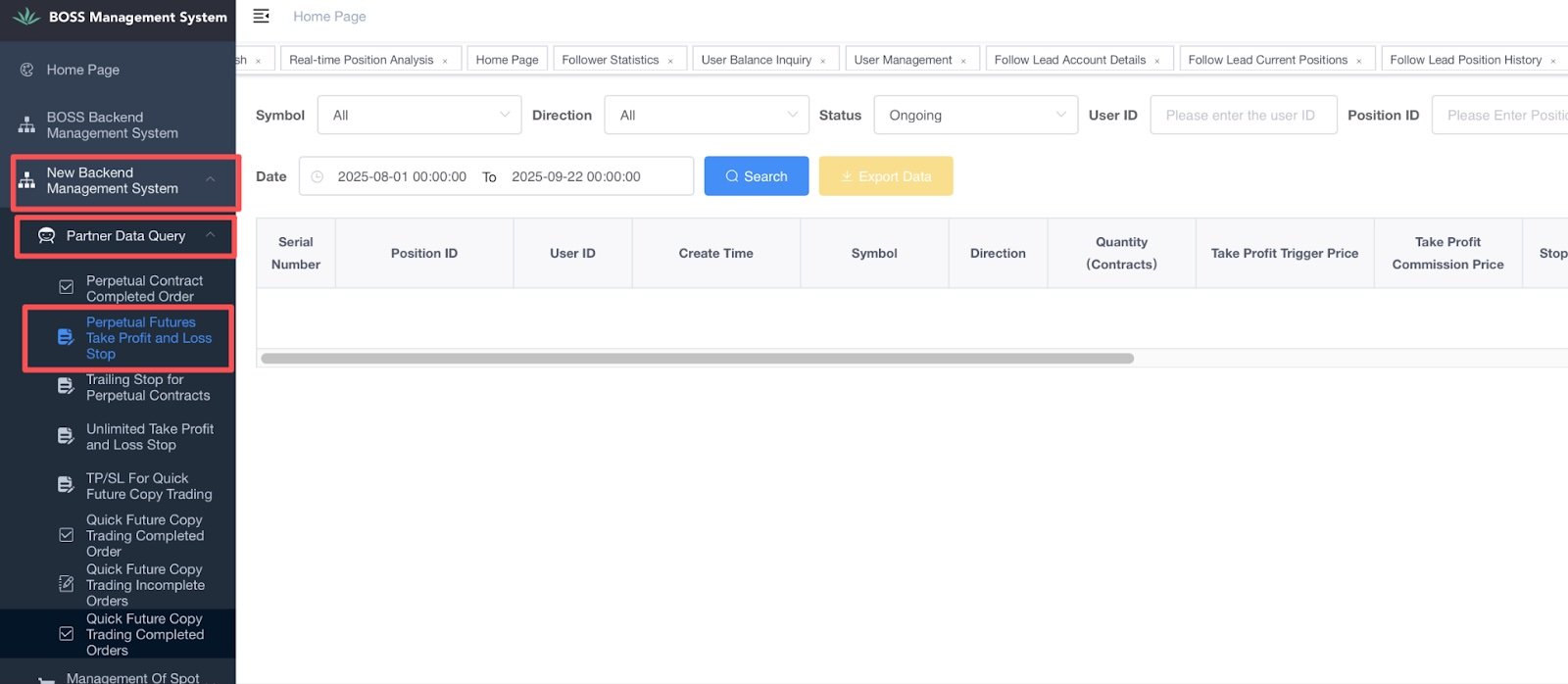
You can check all the TP and SL records here. If there’s no record, it means the user didn’t set any TP / SL.

Take Profit / Stop Loss Order Status
When a user sets a stop-profit or stop-loss (TP/SL), a TP/SL order is created.
These orders depend on the position — if the position is closed, the related TP/SL orders are automatically cancelled.
Status Explanation:
- Ongoing: The order is active and waiting to be triggered.
If the position exists and TP/SL is set → status = Ongoing
- Triggered: The trigger price is reached, and the system sends a close order.
It doesn’t always mean the position is fully closed (e.g., limit order not filled).
- Cancelled: The order was cancelled manually or by the system.
User manually cancels or deletes TP/SL
Or the position is closed → system cancels remaining TP/SL automatically
- Expired: The order becomes invalid because the position disappeared.
System automatically cancels TP/SL when the position is gone
Different from “Cancelled” (which is manual)
- Order Failed: The system couldn’t place the close order after trigger.
Example: No available position left when TP/SL triggers → system fails to send close order
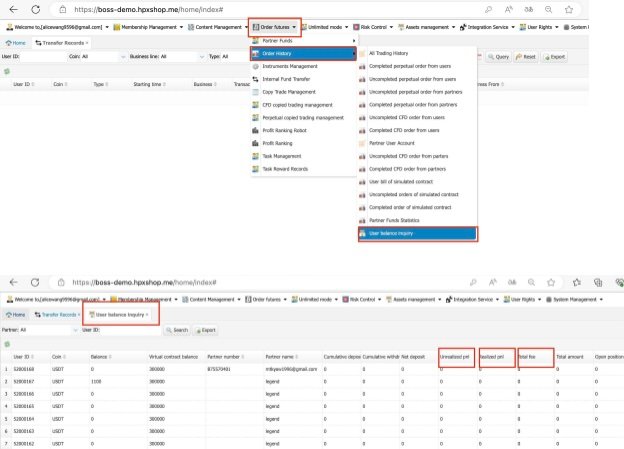
3.3 Futures Account Balance Inquiry
You can see the total profits made here.
- Order futures> Order History> User balance inquiry.
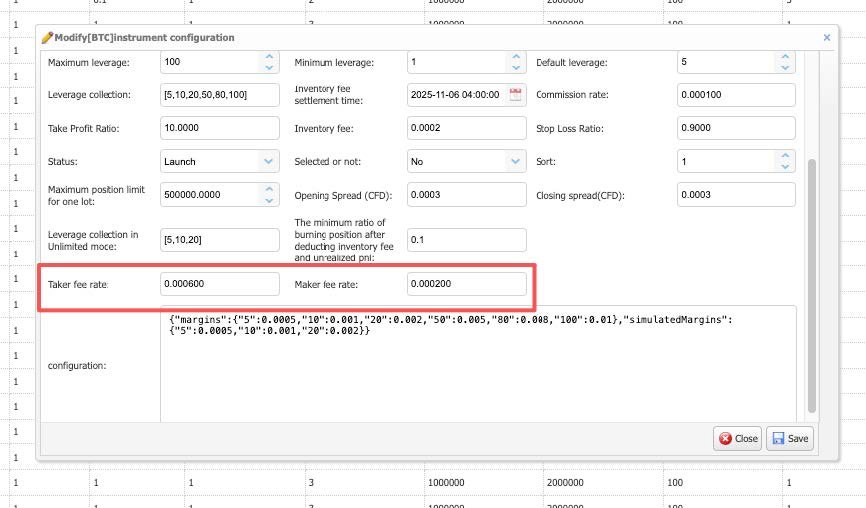
3.4 Adjusting Taker and Maker Fees
- Order Futures > Instrument Management.
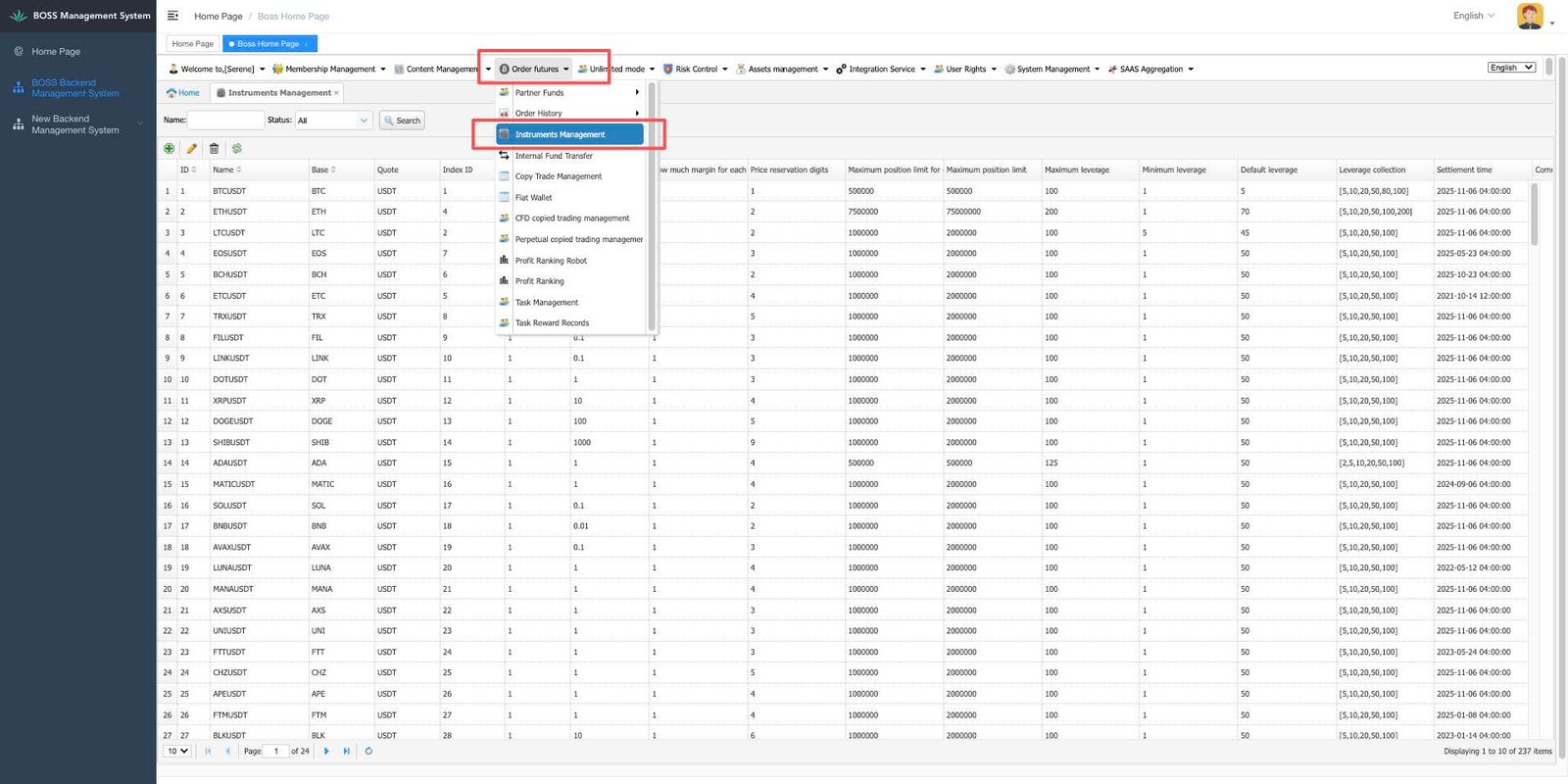
- Select the token and change the taker and maker fees.
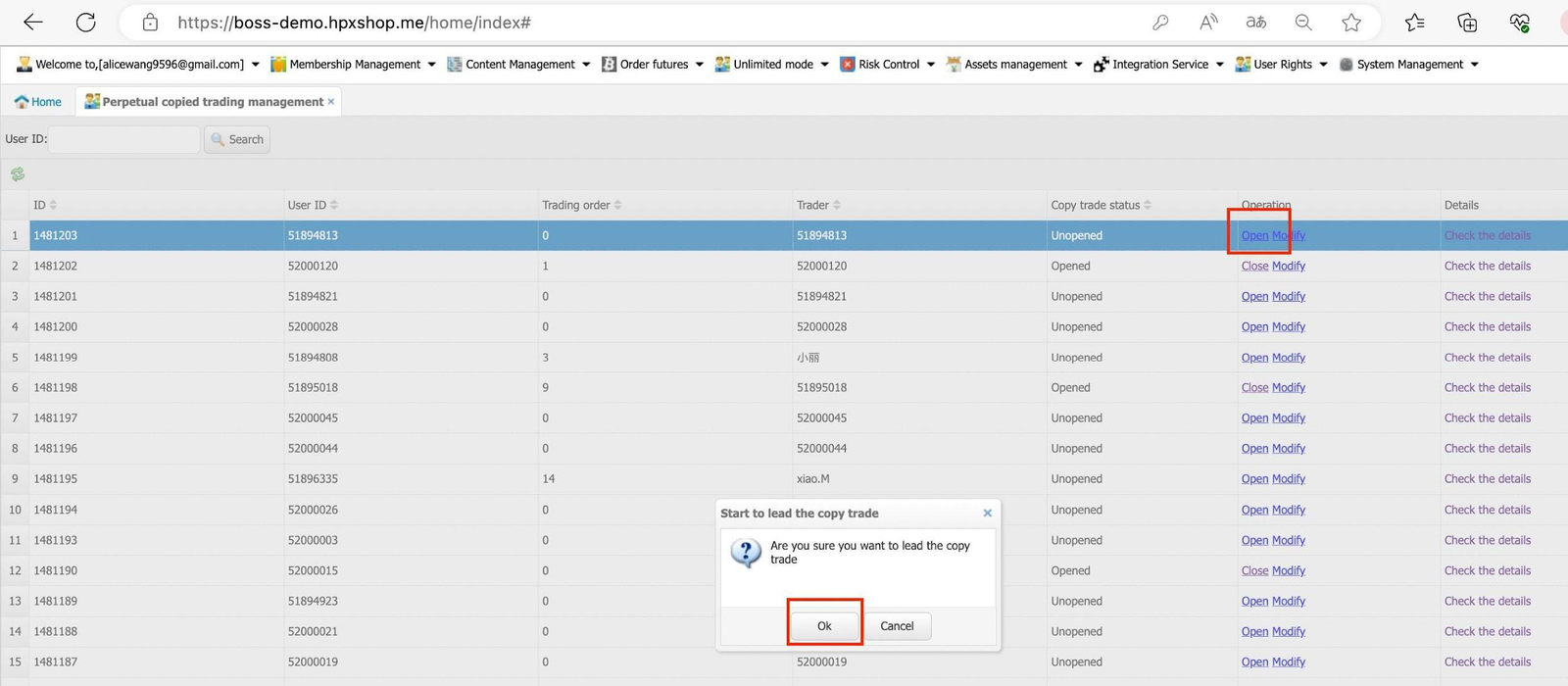
3.5. Creating a Copy Trader Account
User must complete one isolated & cross & CFD of at least 0.1 USDT or more to become the copy trader.
Perpetual Copy Trader
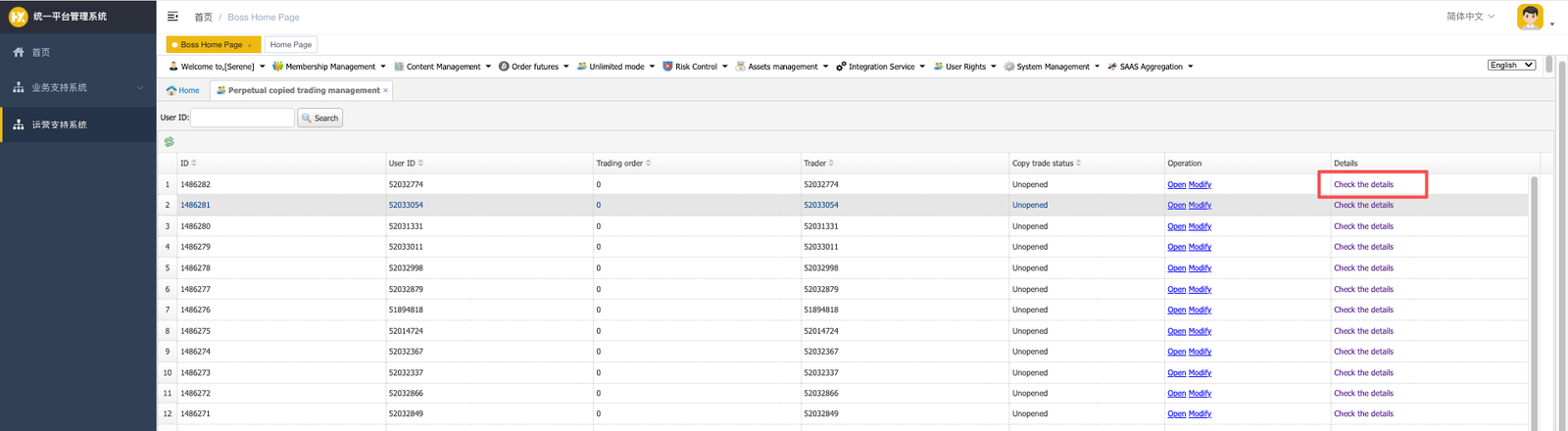
- Order Futures > Perpetual Copied Trading Management> Open.
CFD Copy Trader
- Order Futures > CFD Copied Trading Management> Open.

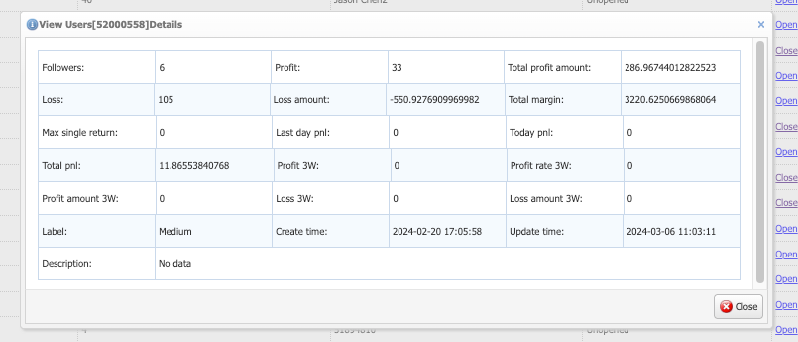
3.5.1 Check Cppy Trader’s Record
- Order Futures > Perpetual Copied Trading Management> Check the details.
3.6. Export Futures Bills
- New Backend Management System> Partner Data Query> User Futures Billing Statistics.
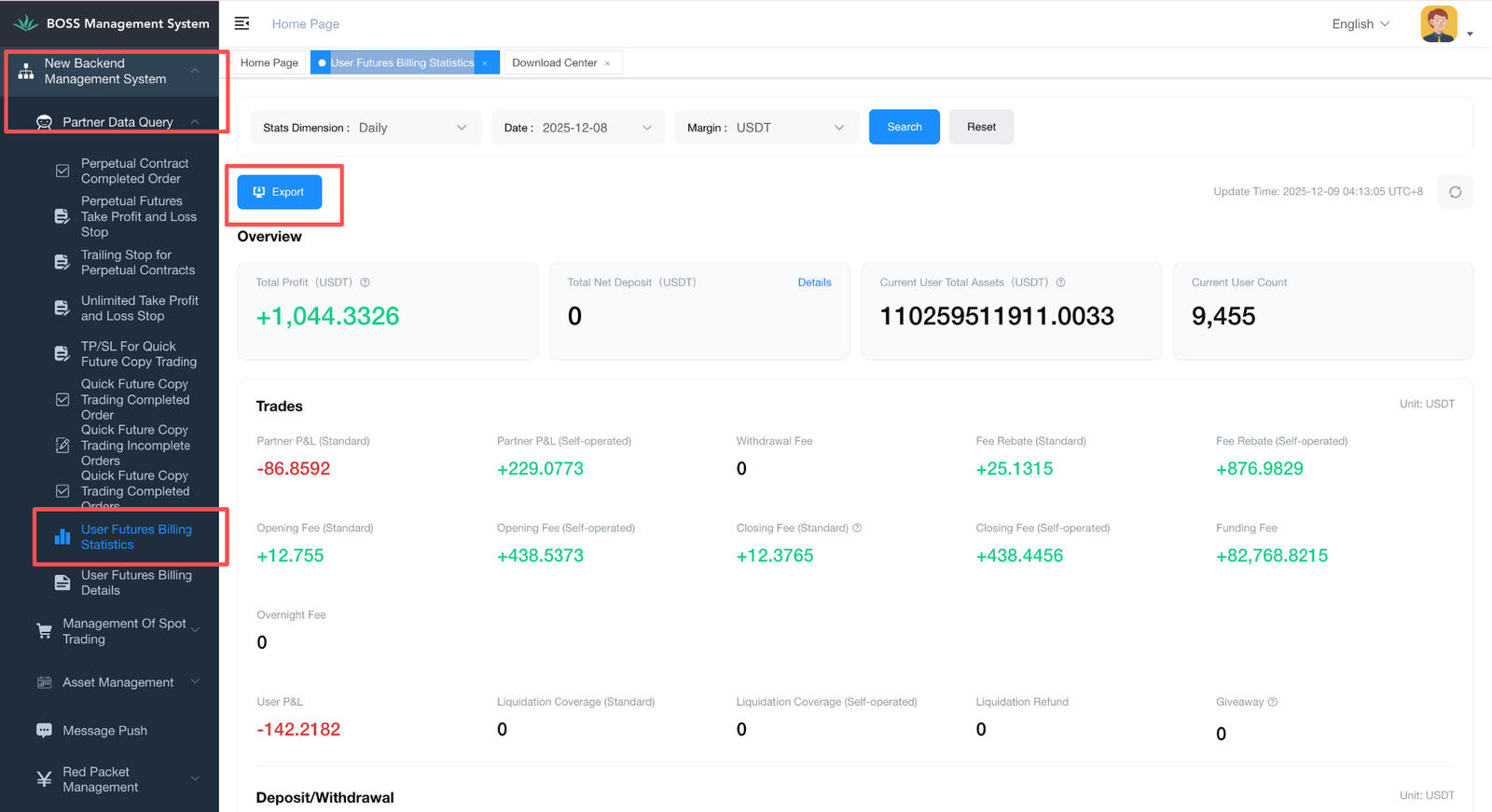
- Click on Export and filter the data you want. You can export the file at max 60days.
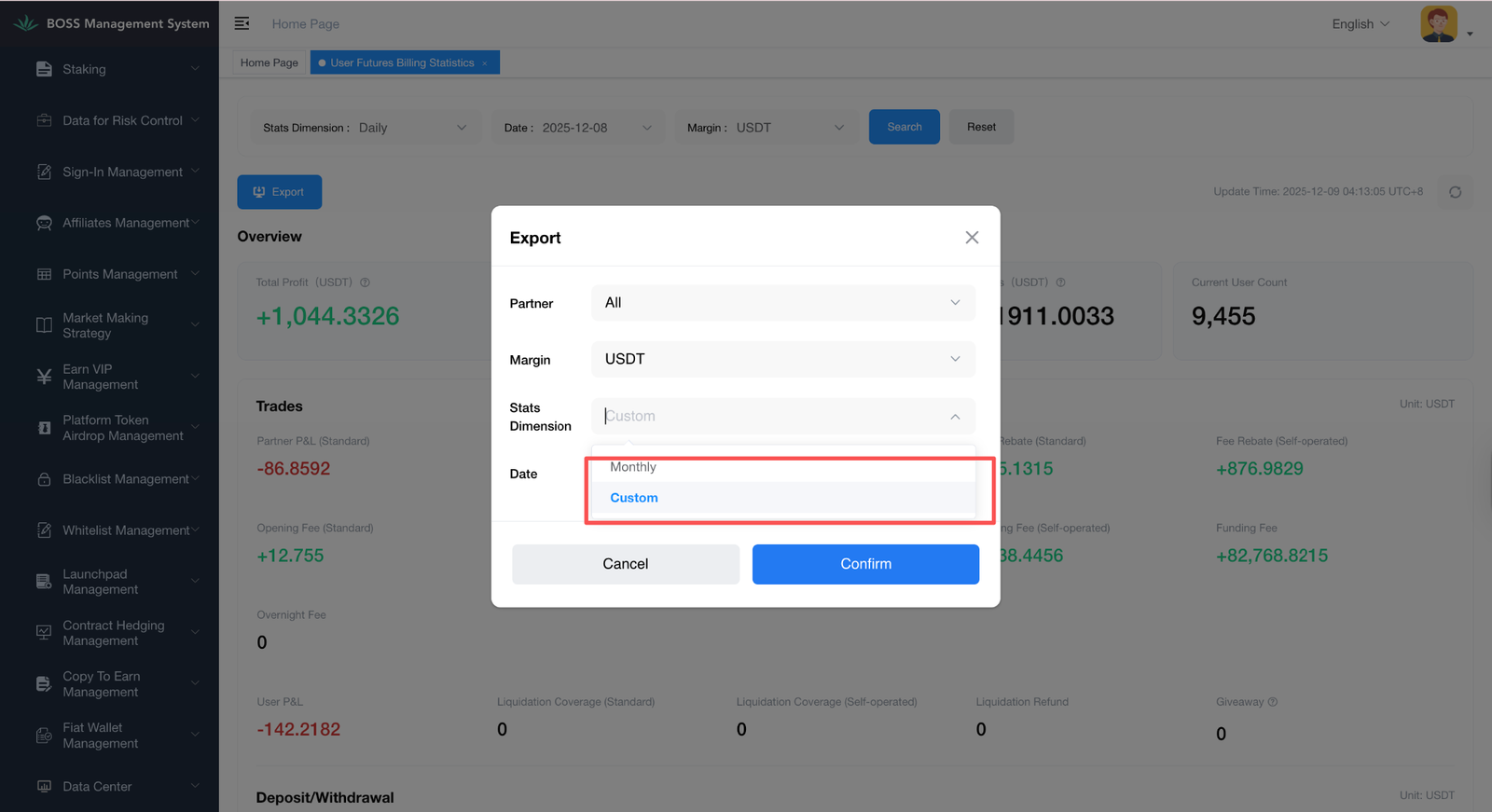
If the data is too big, it will redirect you to the “Download Centre” to check the export progress.